
DevSoft · CGAS Qt Manager
Clinical Workflow
Import, review, compare and report gait analysis data.
A task-based introduction for clinicians, biomechanists, physiotherapists, gait laboratory scientists and researchers. Based on the supplied user manual, version 1.0.0.
The daily assessment path
- Select your database and patient. Sign in, choose the authorised clinical database and check the database name in Main Menu. Find or add the patient in Data Manager.
- Create the assessment. Record the date, a consistent condition description, referral details where available, and the correct lab.
- Attach C3D files. Add trials to Assessment C3Ds and check file status. Managed copies are stored by assessment ID.
- Import and review. Choose the appropriate import path below and review the available gait cycles before saving.
- Check quality and group trials. Review Cycle Quality, create side-specific or combined groups, and select a suitable rank range.
- Plot, render and export. Compare against references, save graph output and export the required assessment or group.
Two import paths
| Direct C3D import | Motion Connect import | |
|---|---|---|
| Graph source | Data read directly from C3D files | Harmonised CSV files are the source of truth |
| Preparation | Gait events and matching Lab Import Settings | Validated c3d_parser_output folder with normalised and de_identified subfolders |
| Actions | Import → review Kin/Kinet cycle selections → Save Selected or Accept All | MC Validator → MC Import C3D → MC Import All |
| Companion C3Ds | Contain the source trial data | Retained for viewing, metadata and reference information |
Review before saving
The C3D reviewer supports All, Kinematics and Kinetics views. Tick or untick the cycle/type combinations to save. Click a plotted line to select the related cycle; double-click to toggle its save selection. Confirm the imported counts and graph panels refresh.
Understand Cycle Quality
Rank 1 is the most representative cycle within the selected graph type and comparison domain. The manual describes median/MAD ranking to reduce the influence of outliers, with left, right and combined ranks.
A rank describes representativeness; it is not a diagnosis or a measure of normal gait. Prefer rank filters for excluding outliers from reports while retaining source data, unless invalid data should be deleted under local policy.
Build meaningful comparison groups
Default assessment groups use the patient/assessment prefix with -L, -R and -LR. Affected/unaffected grouping uses the recorded AffectedSide where appropriate.
- Apply existing groups or use Create n Apply to create assessment groups.
- Open Group Manager, select a group and set Min_Rank / Max_Rank if needed.
- Run Create Group Data to generate group means, SD bands and spatiotemporal summaries.
- Toggle groups for overlay and use contrasting colours to compare conditions such as barefoot and AFO.
Prepare graph outputs
In Plot Graphs, select the lab, graph type and Graph Folder. Choose cycles or groups, apply reference data and optional rank filters, then run Plot / Save followed by Render. Use the folder button to inspect the generated output.
EMG workflow
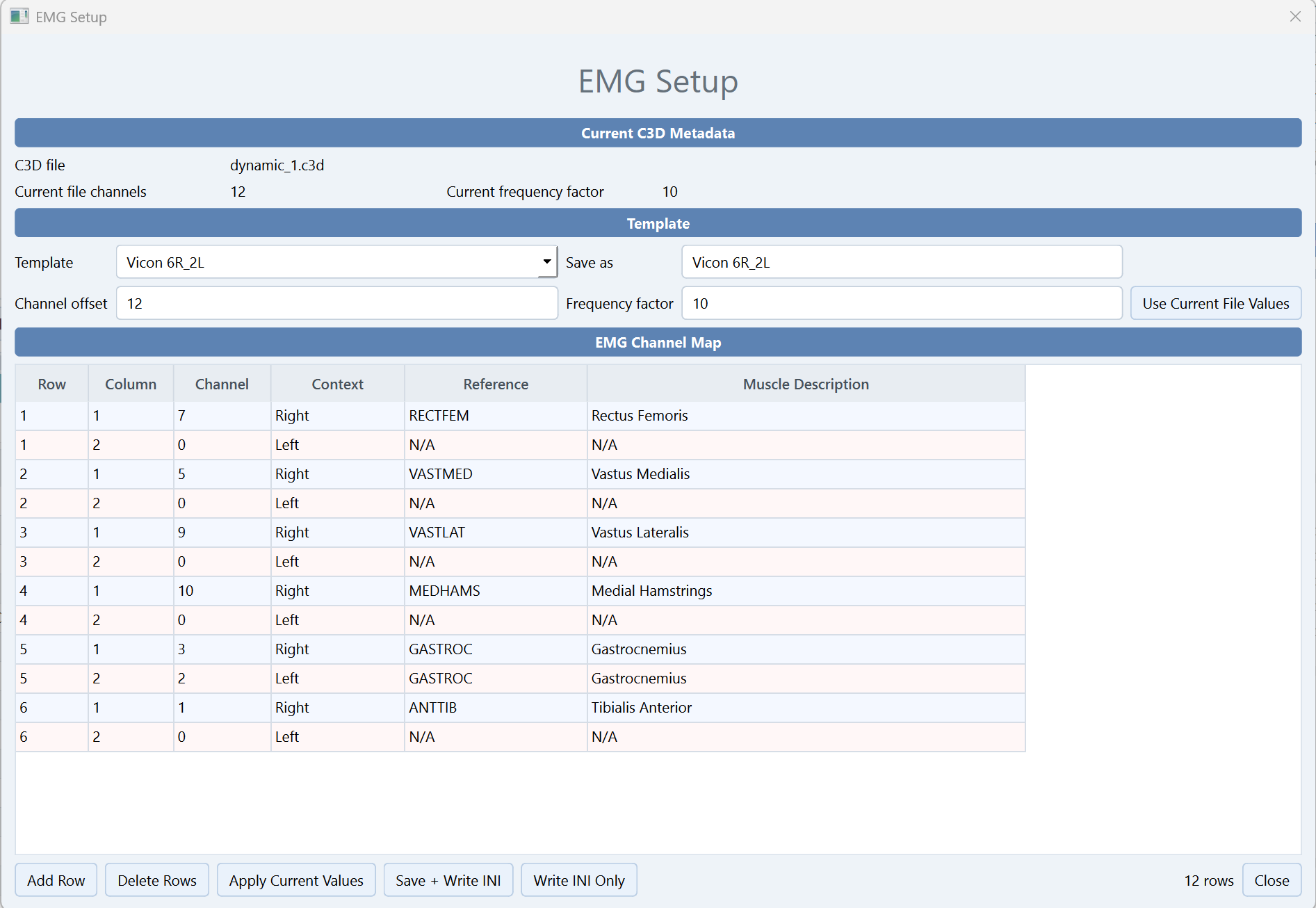
Select the C3D, configure the EMG template/channel mapping through Setup, use View EMG to review the signals, then import EMG and check the stored graphs and cycle count.
When an output is missing
- No graphs: check gait events, labels, graph type and lab mapping.
- Empty group: check assigned C3Ds, imported graphs and rank range.
- Missing kinetics: confirm valid source cycles are present.
- Unexpected plot: check references, group switches, rank filters and graph parameters.