
DevSoft · CGAS Qt Manager
Getting Started
Install, configure and verify your first CGAS Qt Manager system.
This guide summarises the supplied Windows 11 Installation and Acceptance Guide, version 1.0.0. Begin on a test workstation with synthetic or de-identified test data.
What the installation delivers
- CGAS Qt Manager with a private Python and Qt runtime.
- A First Run Setup wizard for the working folder, application database account and baseline database.
- Managed C3D storage, export folders and graph-output folders.
- First application administrator creation after database setup.
Requirements in the installation guide
| Component | Requirement or recommendation |
|---|---|
| Operating system | 64-bit Windows 11 Pro or Enterprise, fully updated |
| Installation rights | Local Windows administrator rights |
| Disk space | At least 25 GB free initially; allow additional space for C3Ds, database growth and graph outputs |
| Database | MySQL Community Server 8.4 LTS, Windows x64 |
| Administration | MySQL Workbench for connection testing, inspection and backup |
| Optional viewer | Laboratory-approved Mokka build for C3D animation |
| Legacy Access | ODBC only if Access also connects; driver bitness must match Access |
CGAS Qt Manager does not require a separate Python, Miniconda, PySide6 or MySQL Connector/Python installation. It does not use ODBC.
Installation sequence
- Install MySQL Server. Configure its Windows service to start automatically. Record the host and port; the guide uses 127.0.0.1 and port 3306 for a local test system.
- Verify MySQL. Confirm the service is running. Connect through Workbench and run
SELECT VERSION();. - Install CGAS. Run
CGAS_QtManager_Setup.exefrom an approved local source. Verify the supplied checksum when available. Use the installer rather than copying runtime folders. - Run First Run Setup. Select “Create a new vanilla CGAS Motion Connect system”. Choose an approved working folder and database name, confirm
mysql.exe, and supply setup credentials in the wizard. - Create the first application administrator. This account is separate from the MySQL root and CGAS database accounts.
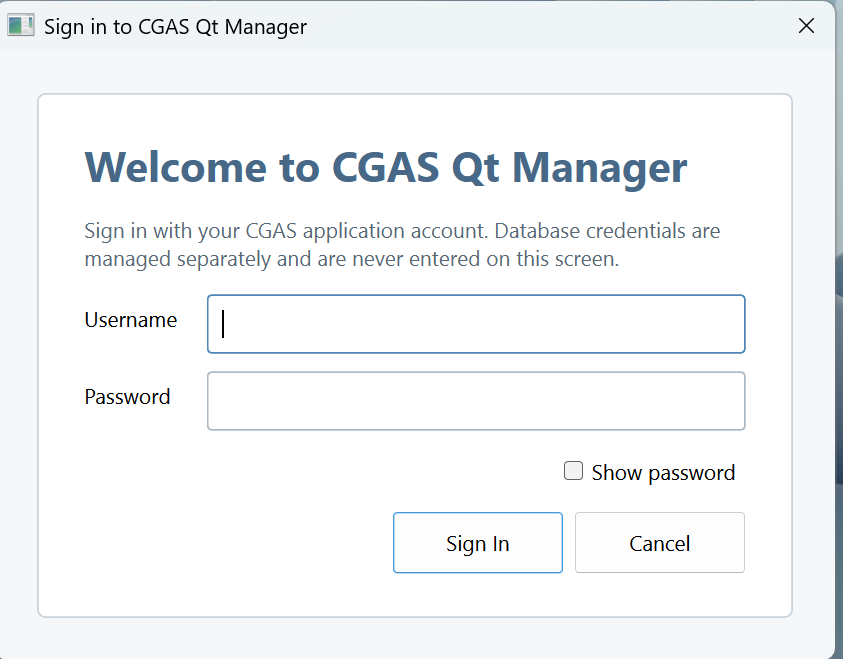
- Sign in and select the database. Confirm the Main Menu displays the intended database name.
Acceptance checklist
- Login and database selection work; Data Manager opens without connection errors.
- A test patient and assessment remain saved after changing selections.
- A test C3D is copied into managed storage and accepted cycles produce graphs.
- Kinematics, kinetics and EMG counts update where data are available.
- A test group can be created and group data generated.
- Plot / Save and Render produce graph output; assessment or group export produces a file.
- After restarting Windows, MySQL starts and CGAS reconnects.
Before operational use
Back up the database and working folder, document the installation, test a non-administrator role, and complete the laboratory's acceptance and governance checks. Public installer availability will be announced on the product page.